
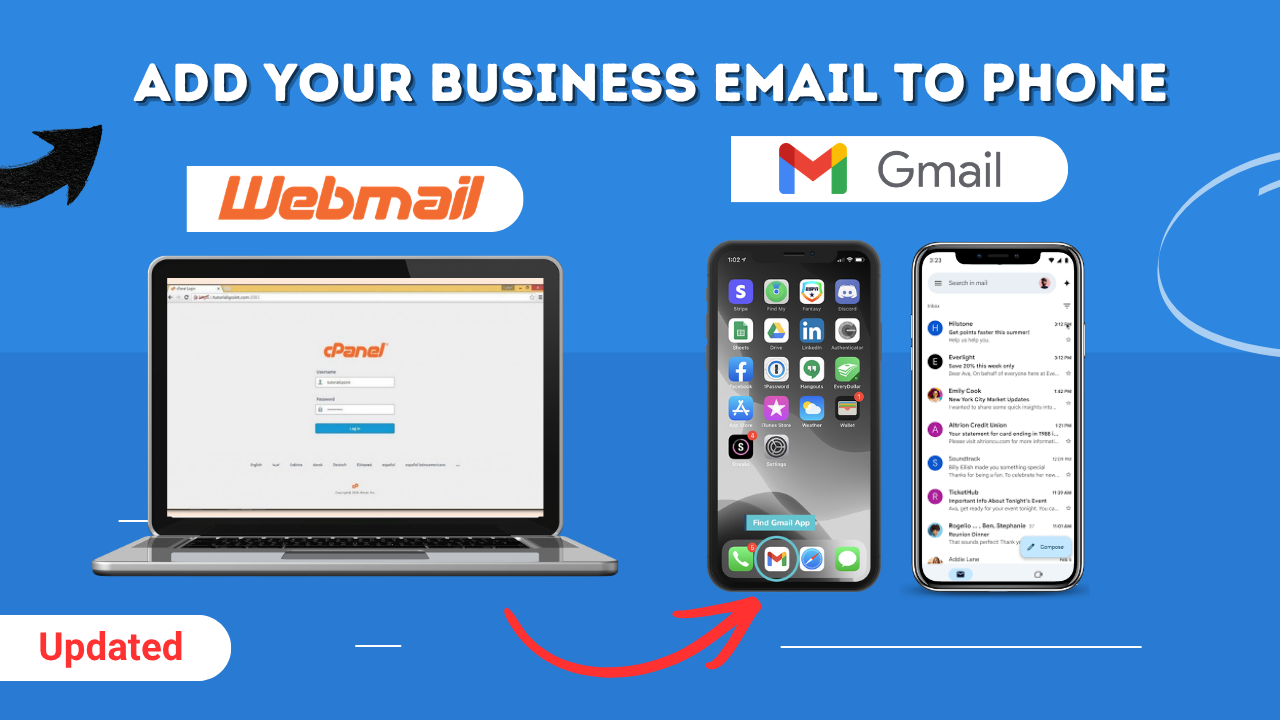
How to Set Up Your cPanel Business Email on Your Phone (Gmail App – iPhone & Android)
If you’re running a business, your email is your lifeline.
Every missed message could be a missed sale.
In this guide, I’ll show you step-by-step how to set up your cPanel business email using the Gmail app, so you can reply to clients anytime, anywhere.
👉 The best part? It works the same on both iPhone and Android.
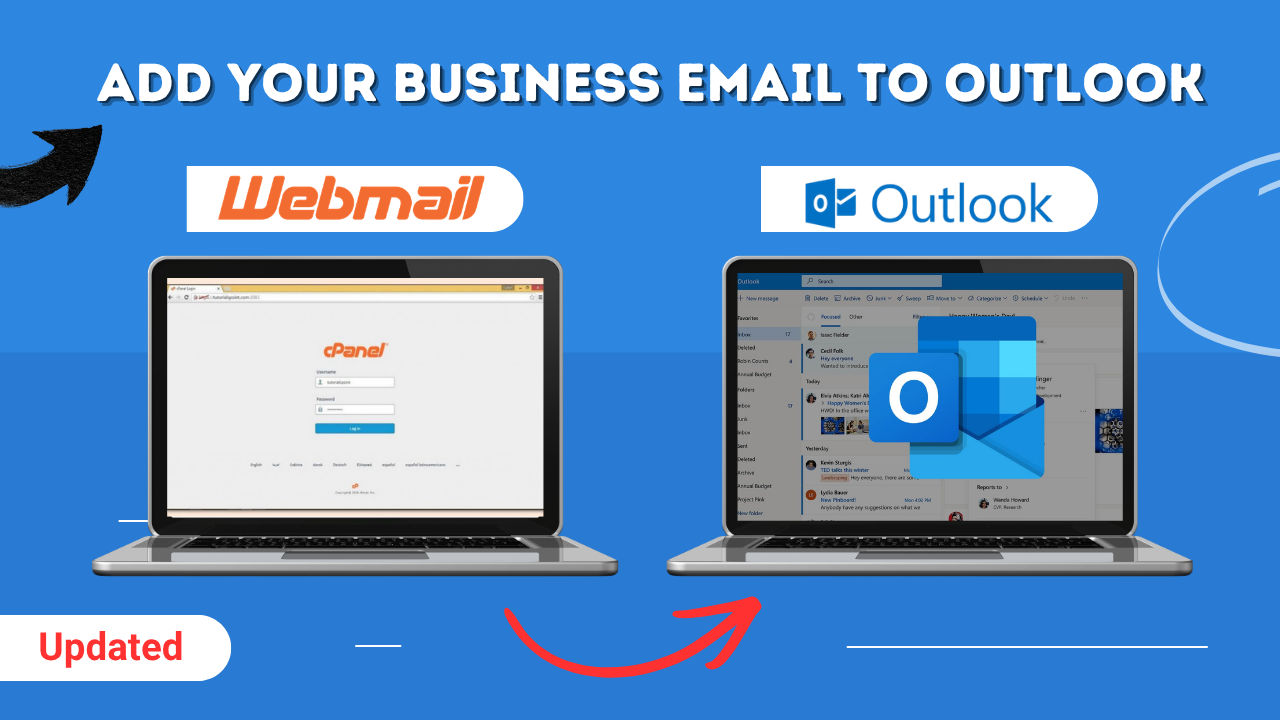
👉 You can also watch the full video tutorial below:
Why Use the Gmail App?
The Gmail app is one of the best tools for managing business emails on your phone.
Here’s why:
- Simple and clean interface
- Reliable email syncing (IMAP)
- Manage multiple email accounts easily
- Instant notifications so you never miss a lead
👉 If speed matters in your business, this setup gives you an advantage.
Step 1: Download the Gmail App
- iPhone → Open the App Store
- Android → Open the Play Store
- Search for Gmail and install it
Once installed, open the app.
Step 2: Add Your Business Email
- Open Gmail
- Tap your profile icon (top right)
- Tap “Add another account.”
- Select “Other”
- Choose IMAP
Step 3: Get Your cPanel Email Settings
Before you continue, go into your cPanel and collect:
- Email address
- Password
- Incoming server (IMAP)
- Outgoing server (SMTP)
- Port numbers
💡 Pro Tip: Screenshot or copy these details—you’ll need them in the next steps.
Step 4: Enter Your Login Details
- Enter your full email (e.g., [email protected])
- Tap Next
- Enter your password
Step 5: Set Up Incoming Server (IMAP)
Use these settings:
- Server: mail.yourdomain.com
- Port: 993
- Security: SSL/TLS
This allows your phone to securely receive emails.
Tap Next.
Step 6: Set Up Outgoing Server (SMTP)
Now enter:
- SMTP Server: mail.yourdomain.com
- Port: 465
- Security: SSL/TLS
⚠️ Note: Some hosting providers use different settings—always confirm in cPanel.
Tap Next.
Step 7: Finish Setup
- Wait a few seconds for verification
- You’ll see: “Your account is set up”
Then:
- Enter your name (what clients will see)
- Tap Next
✅ Your Business Email Is Now Live
You’re all set.
You can now:
- Send and receive emails
- Respond to clients instantly
- Manage personal + business emails in one app
- Stay on top of your business anywhere
Pro Tip (This Makes a Big Difference)
Fast response = more sales.
When a potential customer contacts you, they’re usually contacting multiple businesses.
👉 The one who replies first often wins.
With your email set up on your phone, you:
- Respond faster
- Look more professional
- Close more deals
Final Thoughts
Setting up your business email on your phone is simple, but powerful.
The Gmail app makes it easy, reliable, and perfect for business owners who need to stay connected at all times.
🎥 Watch the Full Tutorial
If you prefer a visual step-by-step, check out the full video on my YouTube channel iMarttrends, where I walk you through everything.
Want More Content Like This?
If you’re building or growing your business online:
- Subscribe to iMarttrends
- Learn practical tips you can apply immediately
- Stay ahead of your competition